 English
 Chinese (Simplified)
 Filipino
 French
 German
 Indonesian
 Italian
 Japanese
 Korean
 Portuguese
 Russian
 Spanish
 Thai
Thai Vietnamese

Product Overview
Front

Rear
Model Label

Bottom
IMEI Label

Accessories
Package Contents
- LT5GEO cellular logger
- Adhesive mounting strip (pre-attached to the logger)
- Safety card
You supply
- Charging cable (USB-C to USB-A or USB-C to USB-C) to fit charger
- Compatible, high-quality 5V/1A USB Power Supply for battery charging (alternatively, use a charger with a fixed USB-C cable)
- LogTag® Online account, set up for Transit shipping
- PC or Smart Device connected to the internet to set up the logger
Compliance and Safety
Safety Information - Please read carefully
This device contains a wireless radio transmitter module (BG95-M3) which has been tested and complies with the rules and regulations mandated by the FCC, IC RSS-210, CE, UKCA and SRRC for intentional transmitters.
Hereby, LogTag® North America Inc declares that the device designated LT5GEO containing this transmitter module is in compliance with:
- Directive 2014/53/EU
- Radio Equipment Regulations SI2017/1206
- FCC 47 CFR Part 15 - Radio Frequency Devices
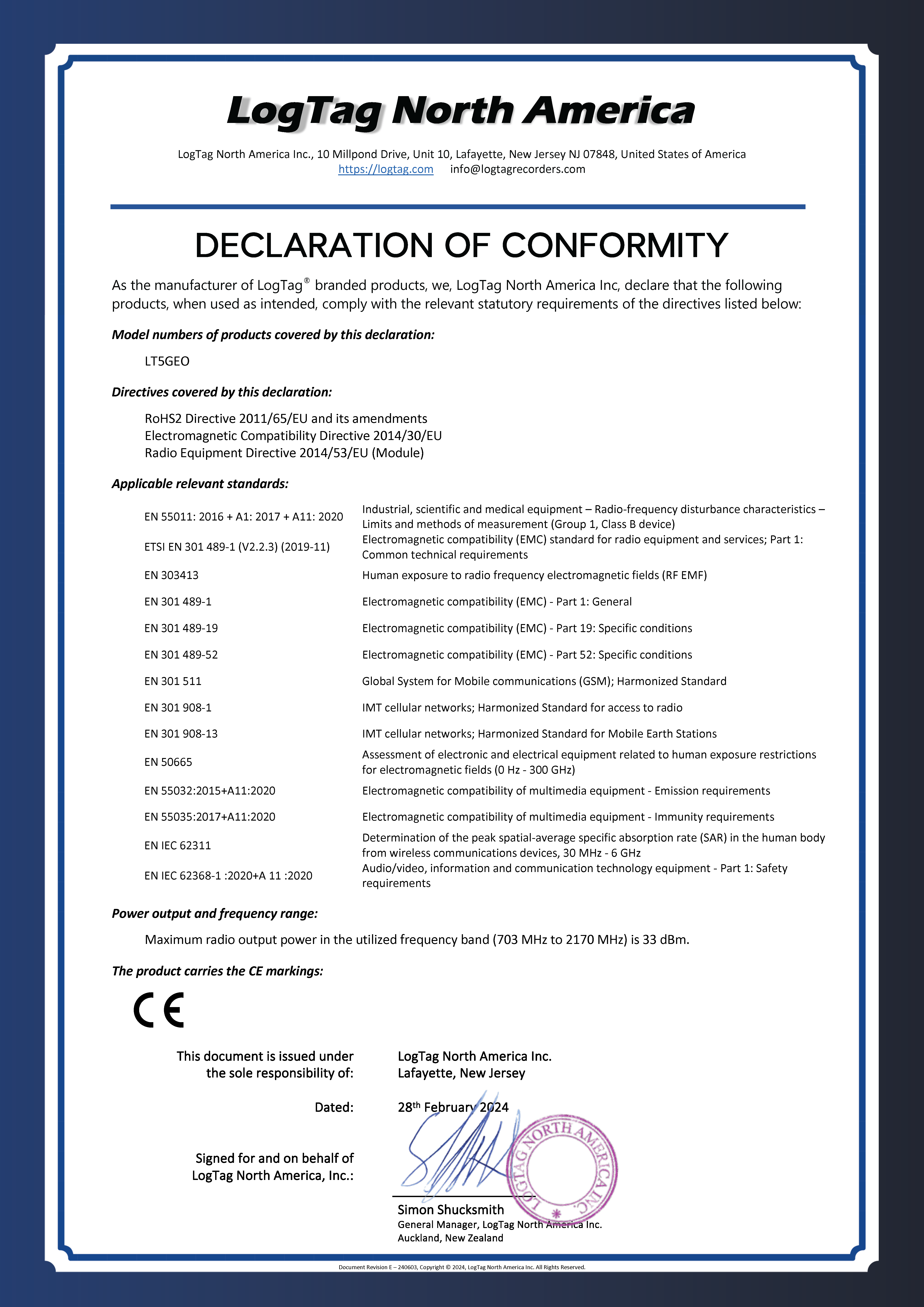
For a full text of these declarations please refer to the Declaration of Conformity .
Any limits specified in these regulations typically are designed to provide reasonable protection against harmful effects in approved installations, although there is no guarantee that interference will not occur in particular circumstances.
This equipment generates, uses, and radiates radio frequency energy and, if not installed and used as defined in the instructions, can cause harmful interference to radio communications.
The Operation is subject to the following conditions:
- The device is not suitable for use by children.
- Firmware in the device must not be replaced unless specifically authorized by LogTag® or its authorized representative.
- No end-user serviceable items are present inside the device. Disassembling, modifying or making any changes to the device, including but not limited to the device’s firmware, without express approval by the manufacturer will render this certificate invalid and void your authority to operate the device.
- The device is fitted with a SIM card in the factory, which must only be replaced by LogTag® or its authorized representative.
- The device is not approved for hand-held operation. The safe user distance, for RF exposure, is ≥ 20 cm.
For further details on the safe operation of the device please refer to the full product user guide.
Technical Compliance Information
The LT5GEO contains a wireless transmitter/receiver module with the following technical specifications:
| Module ID: | BG95-M3 | |
| Wireless Standards: | LTE Cat M1 Cat NB2 EGPRS |
|
| Operating Frequency Range | GSM 900 | 880-915, 925-960 MHz |
| GSM 1800 | 1710-1785, 1805-1880 MHz | |
| LTE FDD Band 1 | 1920-1980 MHz, 2110-2170 MHz | |
| LTE FDD Band 3 | 1710-1785, 1805-1880 MHz | |
| LTE FDD Band 8 | 880-915, 925-960 MHz | |
| LTE FDD Band 20 | 832-862, 791-821 MHz | |
| LTE FDD Band 28 | 703-748, 758-803 MHz | |
| GPS receiver | 1559-1610 MHz | |
| GLONASS receiver | 1559-1610 MHz | |
| BDS receiver | 1559-1610 MHz | |
| Galileo receiver | 1559-1610 MHz | |
| Maximum Output Power | GSM 900 | 33 dBm rated |
| GSM 1800 | 30 dBm rated | |
| LTE FDD Band 1 | 21 dBm rated | |
| LTE FDD Band 3 | 21 dBm rated | |
| LTE FDD Band 8 | 21 dBm rated | |
| LTE FDD Band 20 | 21 dBm rated | |
| LTE FDD Band 28 | 21 dBm rated |
LTE is a trademark of ETSI.
Galileo is a trademark registered to the European Union.
Other trademarks, product, service and company names mentioned may be the property of their respective owners.
Certificates
Download the PDF file for your region here:
Europe:

UK:
North America:
Quickstart
Scroll down to read the complete guide, scroll up to read additional information and technical data, or jump directly to one of the sections:
- Configuration and set up of the LT5GEO
- Charging the LT5GEO
- Starting the LT5GEO
- During recording
- Checking the LT5GEO's Status
- Receiving Cargo with an LT5GEO inside
- Troubleshooting
You can get additional information from the product's PDF user guide or watch the tutorial video:
Configuration and Setup of the LT5GEO
To get real-time data from a cellular logger you must add it to a shipment in the LogTag® Online environmental monitoring system. This can be done in a few simple steps, either before or after the logger was started:
-
Visit https://logtagonline.com/login and sign in to your LogTag® Online Transit User account. If you do not already have one, create a free account and select “Transit User” as the “Team Profile” option.
If you cannot see "Shipments" in the bottom navigation bar, your team is not set up as a "Transit User".
In this case, open the account menu by clicking your profile name, then click "Manage Team". Click the "Team" tab and change the "Team Profile" to "Transit User".
Note: If you are not the team's owner, they have to do this for you.
- Click "Shipments" (if you are not already on this page), then click Shipment Wizard . Enter a name for the shipment, select origin and destination, and enter an estimated journey time.
- When finished, click Next .
- Enter the logger's serial number and click Add to shipment . You can then either select a device profile you have previously used or select “Create new”. This will open a new window where you can enter custom configuration parameters for the logger. Such a profile will be stored in your account and can be used for future shipments.
- Once all parameters have been entered, click Create Shipment .
- Your logger will start uploading data to LogTag® Online when it next connects to the cellular network.
You can find detailed instructions with reference images for setup at https://lt.help/ltogeo/.
Charging the Logger
Before you start a logger check its battery status by briefly pressing the Start/Check button.
If the red ALERT LED lights, the battery is only partially charged; the logger can be started, but may not have sufficient battery left to cover the intended trip.
- Remove the protective socket cover at the bottom of the logger.
- Plug the USB-C end of the charger cable into the logger's USB-C socket and supply power. We recommend you only use a high-quality charger from a reputable manufacturer. The logger will not charge when plugging it into a PC's USB-C port.
- The logger indicates it is charging by turning on its red Alert LED.
- When fully charged, the green OK LED will permanently turn on.
The logger is now ready for use.
If the green OK LED lights, the battery is at least 80% charged. We recommend you charge the logger before you add it to a shipment, regardless of battery status, to maximise trip duration.
Starting the Logger
Press and hold the Start/Check button for 4 seconds. The green LED will turn on, indicating the charge level is OK. If the red LED turns on, charge the unit before continuing with the start procedure. Release the button when both LEDs flash in an alternating pattern. The logger will:
- Connect to LogTag® Online and request any updates to its configuration data
- Start recording environmental and positioning data and transmit this to LogTag® Online
Add the logger to the cargo. For accurate shock data, use the included adhesive strip and mount the logger to a solid surface.
During Recording
Once started, the LT5GEO will record the following environmental data every 10 minutes:
- Temperature and humidity
- Light level
- Shock
In addition, the logger records its position, using GPS (if a signal is available) or cell site trilateration (when cellular coverage is available). How often this is done depends on the length you have chosen for your trip.
At set intervals, the logger transmits its recorded data to LogTag® Online. The shortest interval at which transmissions occur is dependent on the estimated journey length you have entered. Typically, this is every 8 hours for a 20-day trip, but can be longer depending on the availability of a cellular signal and the remaining charge level of the battery.
For data to be transmitted, the LT5GEO must be allocated to a shipment in LogTag® Online. If you do not complete the required setup steps, you will not receive any data the logger records.
While logging, the green LED will blink every 4 seconds if the logger has not triggered an alarm. The red LED will blink if an alarm has been triggered.
LogTag® Online can give you additional information about the LT5GEO's battery status, its expected remaining recording duration and the expected transmission interval.
Checking the Logger's Status
At any stage while the logger is not charging you can check its operational status by briefly pressing the Start/Check button for one second.
-
OK LED (green) lights for 3 seconds
The logger is operating normally and its battery charge level is sufficient for transmitting live data to LogTag® Online. -
Alert LED (red) lights for 3 seconds
The logger is recording, but its battery is no longer sufficiently charged to transmit live data to LogTag® Online. Transmission is suspended to save battery life. -
OK LED blinks for 3 seconds
The logger’s battery charge level is sufficient for transmitting data, but the last transmission attempt failed (for example, if no cellular signal was available at the time the transmission was attempted). Transmission will resume at the next scheduled interval. -
Alert LED blinks for 3 seconds
The logger’s battery is no longer sufficiently charged to transmit live data, and the last transmission attempt failed. The transmission will not resume until the logger is re-charged. In this case, please refer to the section about Missing Data. -
None of the LEDs light
The logger's battery is empty and requires charging.
Receiving Cargo with a Logger
When the cargo has reached its destination, recover the logger.
Briefly (1 sec) press the Start/Check button. This will transmit any data not yet available in LogTag® Online, provided the logger still has a sufficient battery charge level. If you press the button, and no LEDs light, either LED blinks for 3 seconds or data is missing from the chart in LogTag® Online, follow the steps in the Troubleshooting section.
If you have access to the shipment in LogTag® Online, open the "Shipments" page, click the line with the shipment to which the logger was added and click Complete Shipment . This concludes data collection for the shipment so no erroneous data is transmitted, as the logger will continue to transmit until it receives a confirmation message from LogTag® Online. If LogTag® Online receives geo-location data which indicate the logger is positioned inside the destination zone, the shipment will auto-complete after 14 days, and the logger will stop recording and transmitting data.
Once a Multi-Use logger has stopped recording, it can be added to a new shipment. Simply start the process again at the Configuration and Setup step.
Troubleshooting
The LT5GEO may arrive at the destination, but you cannot see all data from the trip in LogTag® Online. You can identify this by checking the logger's status. If no LEDs light when you press the Start/Check button for 1 second, or you see a transmission error signal, the logger did not transmit some of the recorded data.
If this happens, do the following:
- Charge the unit until the green OK LED lights up steadily. If the battery is very low, the red LED will blink slowly, and you will not be able to access the data. Remove the charger and press the Start/Check button to upload the data via the cellular network. You should see the green OK LED light, and the data will be available in LogTag® Online shortly after you have pressed the button (provided there is cellular coverage). Note that charging from a very low battery could take several hours.
- If this fails, or the data is needed immediately, navigate to here in your PC’s browser and follow the instructions. This requires you to connect the logger to a PC and download a small program that can extract the data from the LT5GEO and upload it to LogTag® Online via your internet connection.
Still stuck? We're a click away
Submit a request